How it works
Stale contexts and drift
Understand why DXF Exporter may ask you to revalidate after design history or configuration changes.
Stale context and drift mean your validation may be out of date. Unlike the per-part statuses in the validation table, these warnings apply to the whole export — the model state DXF Exporter checked may no longer match what you are viewing in Onshape. See Validation warnings for how this fits alongside part-level statuses.
When the app checks for drift
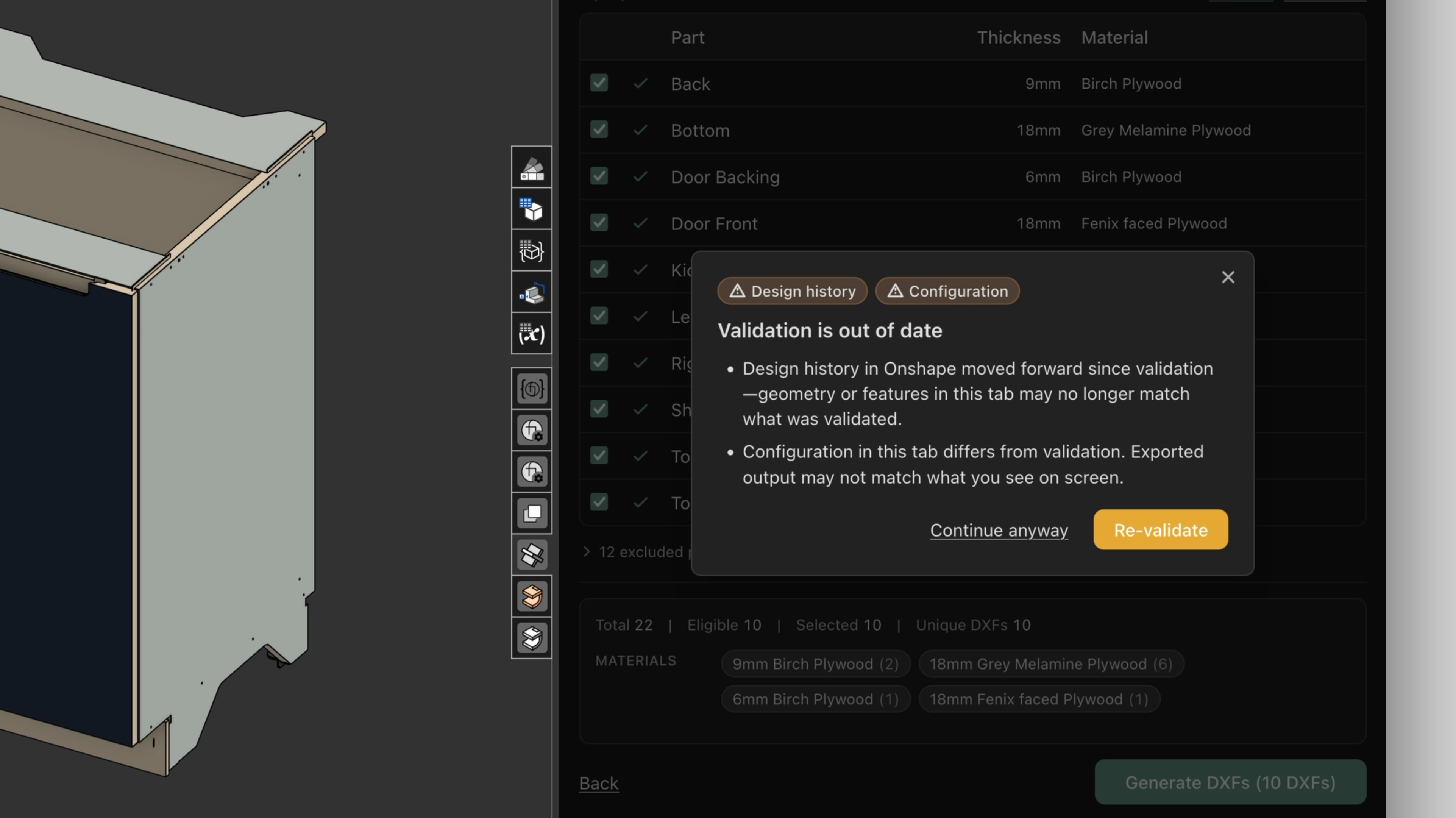
Before Generate or Download, DXF Exporter compares the current tab against the snapshot from your last validation: design history and, where applicable, configuration. If something changed, a confirmation dialog appears before the action continues.
A staleness banner can also appear on the validation screen after you dismiss the dialog or continue anyway, as a reminder that output may be out of date.
Design history and configuration
Drift comes in two types. You may see one or both as pills on the dialog:
- Design history — features were edited, rebuilt, or otherwise changed since validation. Geometry in this tab may no longer match what was checked.
- Configuration — the configuration in this tab differs from validation. Exported output may not match what you see on screen.
If both changed, both pills appear. Configuration drift is common in configured Part Studios — for example, if you change the configuration dropdown after validating.
Your options when drift is flagged
When the dialog appears:
- Re-validate (recommended) — closes the dialog and runs validation again for the current context. Use this when you need DXFs that match what you see in Onshape.
- Continue anyway — proceeds with generate or download using the last validation snapshot. Output may not reflect recent model or configuration changes. The reminder on the validation screen stays visible.
- Close (X) or Go back — cancels the action. No files are generated or downloaded. If drift was detected, the reminder still appears on the validation screen so you know validation is out of date.
Design history drift applies whenever the tab has moved forward since validation — including edits in the same Part Studio you validated from.