Getting started
Export DXFs from imported CAD files
Import supported CAD geometry into Onshape, then use DXF Exporter from inside the Onshape document.
DXF Exporter runs inside Onshape. If your model starts in Fusion, SOLIDWORKS, Rhino, Inventor, or arrives as STEP or Parasolid, import it into Onshape first, then run DXF Exporter from that document.
You will need an Onshape account (sign up here) and DXF Exporter installed. Onshape Free documents are public. If the model is private, commercial, or sensitive, use an account that provides the privacy you need. Free accounts also have a stricter processing limit; see Onshape usage limits.
Export from your CAD tool
From your CAD tool, export a solid B-rep format Onshape can import:
- Parasolid (
.x_t,.x_b) — most reliable neutral format - STEP (
.step,.stp) — usual fallback when Parasolid is not available - Native part formats — including SOLIDWORKS (
.sldprt), Inventor, Creo/Pro-E, and Rhino (.3dm)
Do not use mesh formats (STL, OBJ). DXF Exporter requires solid B-rep geometry. Meshes may import into Onshape for reference, but they are not valid input for DXF Exporter.
Export settings vary by CAD system:
- Fusion — export as STEP
- SOLIDWORKS —
.sldprtnative import works; for assemblies, Parasolid or Pack and Go (see Onshape SOLIDWORKS import guidance) - Rhino —
.3dmimports natively; STEP or Parasolid are good neutral alternatives - Inventor — native part files or STEP
For the full list, see Onshape supported file formats (B-rep part and assembly formats — not mesh-only entries).
Import into Onshape
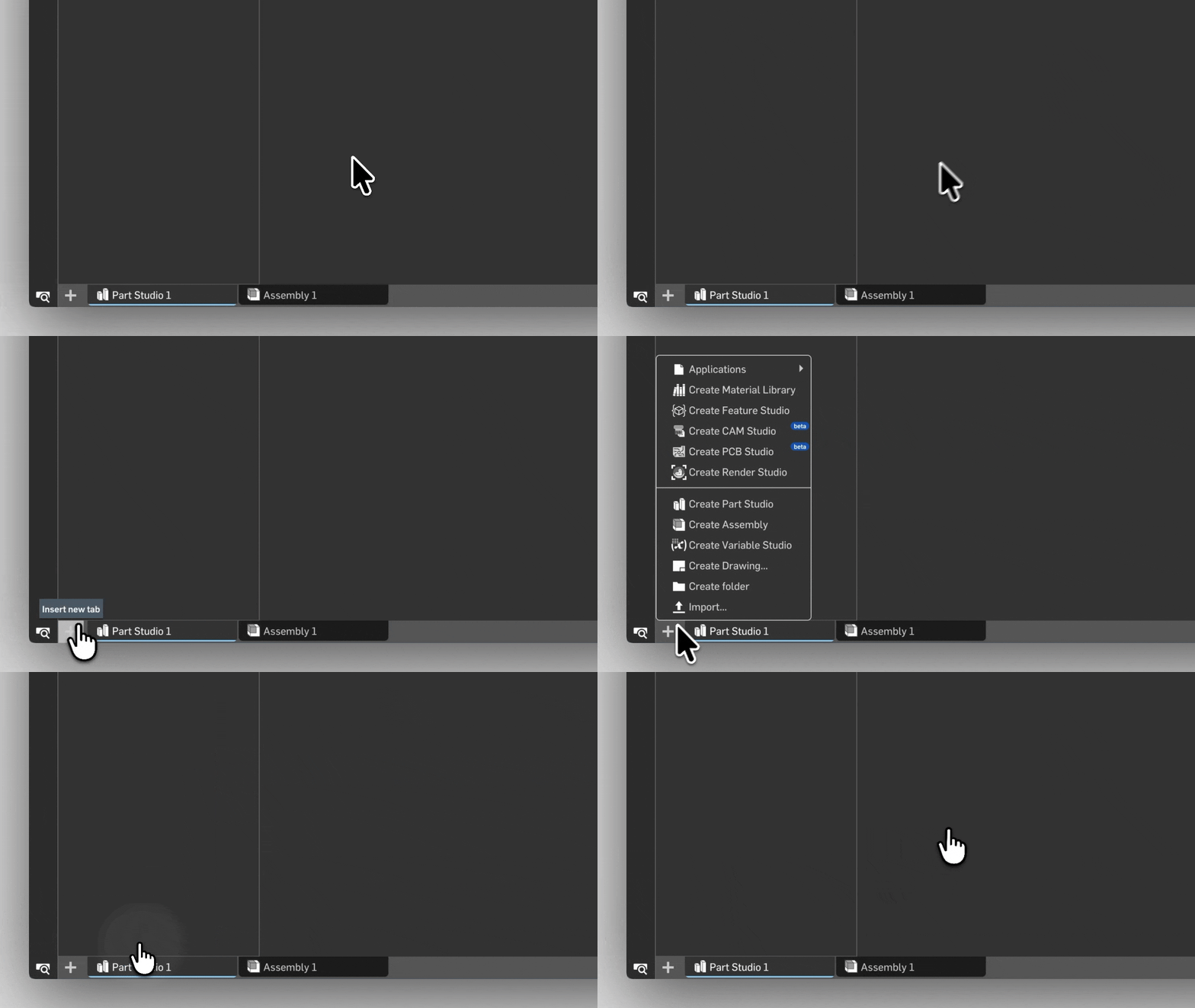
Create or open an Onshape document and import the file (Onshape import help). Review the imported geometry before export — imported models have no feature history, and surfaces or open bodies may need fixing in Onshape before DXF Exporter can process them.
Run DXF Exporter
Open DXF Exporter inside the Onshape document that contains your imported geometry and follow Export your first DXF package — validate, preview, and download. The same flow applies from a Part Studio or an assembly tab. If you are exporting from an assembly, see Export from an assembly for behaviour that differs from a Part Studio.
If validation reports warnings or errors, see Validation warnings for what each status means and how to address it.