
Validation & fixes
DXF Export Prep custom feature
Install and use the DXF Export Prep custom feature to apply overcam, ball-cut edges, and part exclusions before export.
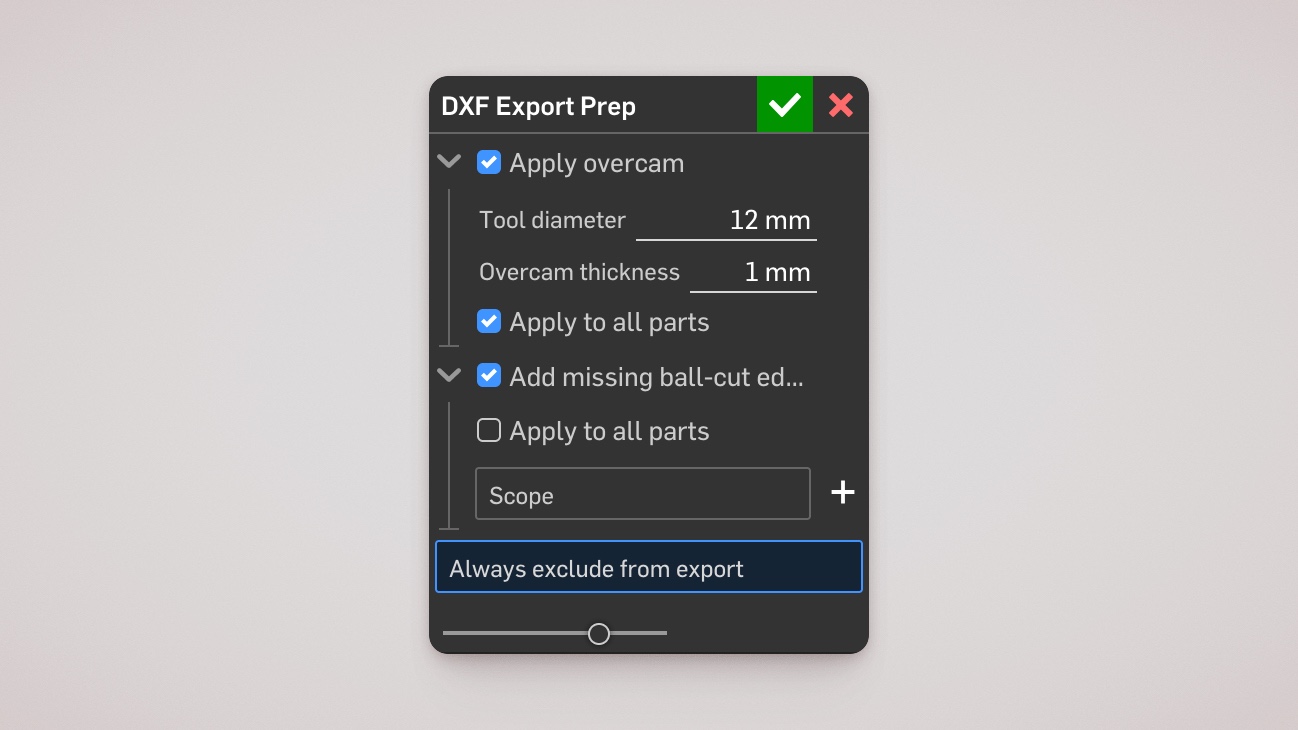
DXF Export Prep is a companion Onshape custom feature. DXF Exporter handles validation and export; Export Prep changes the Part Studio — overcam relief, missing ball-cut toolpath edges, and parts to exclude from the package. For grain direction and face orientation, use DXF Material Prep.
Install the custom feature
Open DXF Export Prep in Onshape and add the feature to your toolbar, then insert it into the Part Studio feature list like any other custom feature.
If you have not used custom features before, Onshape's guide to adding custom features covers adding one to the toolbar.
When to use it
You can validate first and use the prep feature to fix what the validation table shows, or prep up front if you already know what the model needs, then validate to confirm. Revalidate after changing prep feature inputs.
Do not add features downstream of DXF Export Prep. Later geometry changes can undo or conflict with the relief and toolpath edges the prep feature creates.
What Export Prep can do
| Action | When you need it | More detail |
|---|---|---|
| Apply overcam | Pockets at the part boundary where a round cutter would leave internal radiused corners — validation will flag these. | Overcam |
| Add ball-cut toolpath edges | A round-ended groove is missing the toolpath edge the exporter needs. | Ball-cut edges |
| Exclude parts from export | Reference, hardware, or iteration bodies should stay out of the validation table and package. | Parts excluded from validation and export |
Applying overcam or ball-cut edges does not turn an incompatible part into a compatible one. Those actions prepare geometry on parts that already pass the sheet-stock checks. See Model requirements for incompatible geometry and double-sided milling.
Some parts are excluded automatically without the prep feature — composite bodies and suppressed assembly instances. The full list is in Model requirements.
After prep
Run validation in DXF Exporter, and review any remaining statuses in Validation warnings before generating files.