Getting started
Install DXF Exporter
Install DXF Exporter from the Onshape App Store and open it inside an Onshape document.
Before you start
DXF Exporter runs as an Onshape app. You use it inside an Onshape document rather than as a separate desktop program.
You will need an Onshape account and a document containing the parts or assembly you want to export.
Install from the Onshape App Store
Open the DXF Exporter listing in the Onshape App Store and install the app.
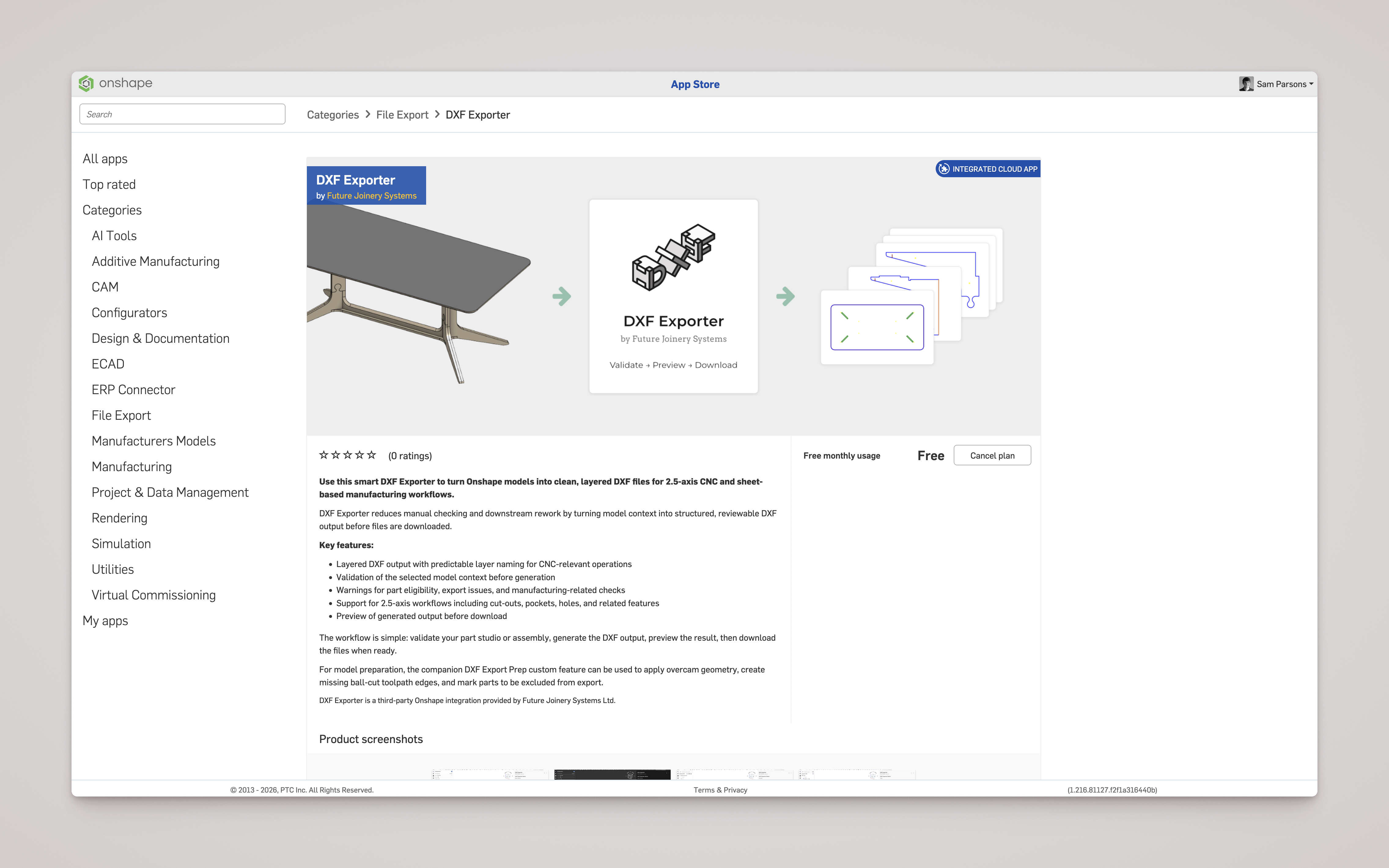
If you have not installed an Onshape app before, Onshape's App Store help covers the full flow. Their video walkthrough shows the same steps for any app, not DXF Exporter specifically.
After installing, return to Onshape and open the document you want to work with.
Open DXF Exporter in a document
Inside your Onshape document, open DXF Exporter from the app tools available to the document. The app opens in the context of the current document so it can inspect the selected Part Studio or assembly.
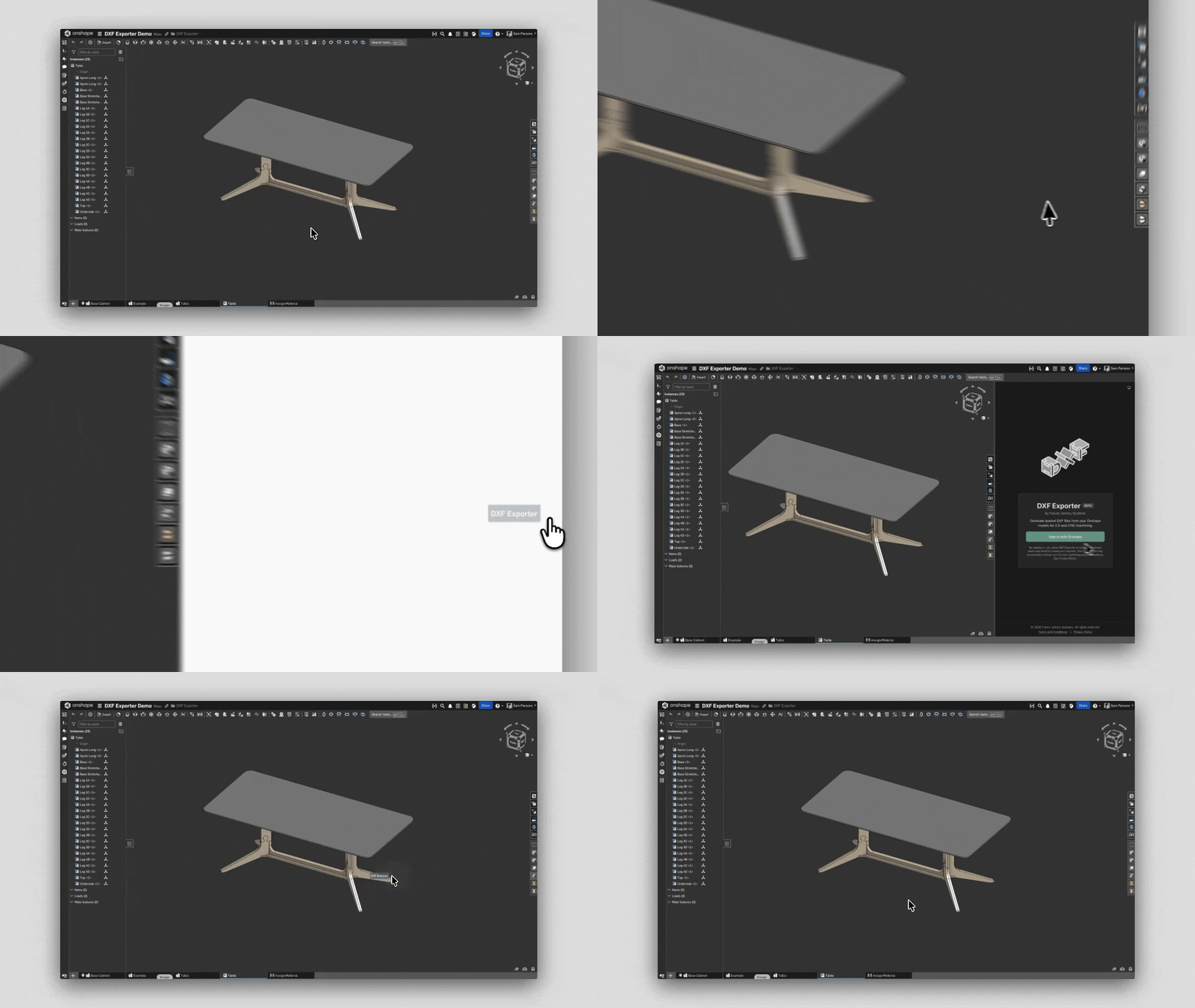
If you are working with imported CAD, import the model into Onshape first. See Export DXFs from imported CAD files for that workflow.
Once the app is open in your document, installation is complete.